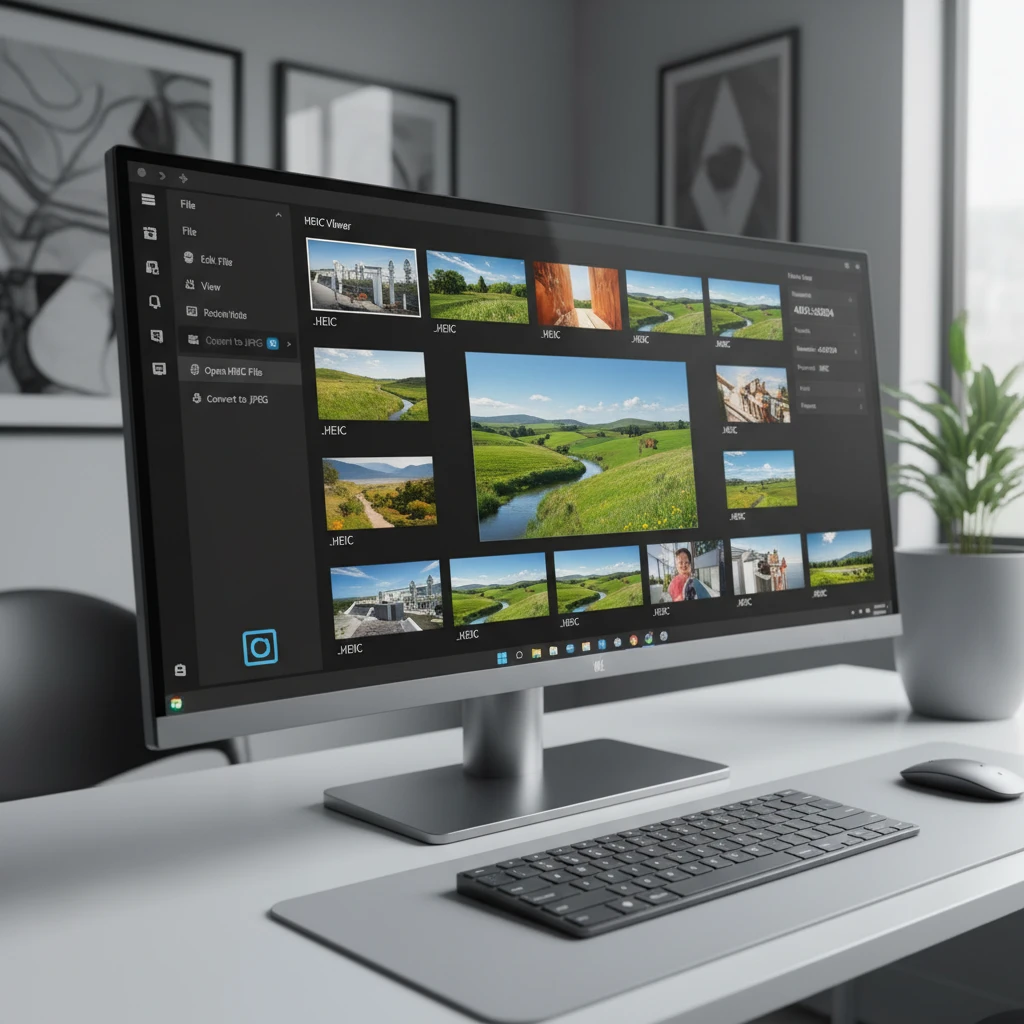
You’ve just received photos from an iPhone user, but when you try to open them on your Windows PC, you’re met with frustration. Those mysterious .HEIC files won’t budge in your usual photo viewer. Don’t worry—you’re not alone in this digital dilemma.
HEIC (High Efficiency Image Container) is Apple’s modern photo format that creates smaller file sizes while maintaining excellent quality. However, Windows doesn’t play nicely with HEIC files out of the box, leaving millions of users scrambling for solutions.
The good news? There are several reliable ways to view HEIC photos on Windows, each with distinct advantages depending on your needs and technical comfort level.
TL;DR: Quick Solutions for HEIC Files
- Enable native Windows support by installing HEIF Image Extensions from Microsoft Store
- Use built-in Windows Photos app after codec installation
- Download dedicated HEIC viewer applications for enhanced features
- Convert HEIC files to JPEG using online tools for permanent compatibility
- Consider cloud storage solutions that automatically convert formats
Understanding HEIC: Why Windows Struggles with Apple’s Format
HEIC files use the HEIF (High Efficiency Image Format) standard, which Apple adopted starting with iOS 11 in 2017. This format **reduces file sizes by up to 50%** compared to traditional JPEG while preserving superior image quality through advanced compression algorithms.
The format’s efficiency comes from its use of modern video compression techniques, specifically the HEVC (H.265) codec. While this creates stunning photos that take up less storage space, it also requires specific software support that Windows historically lacked.
Microsoft finally added HEIF support to Windows 10 version 1809 and later, but there’s a catch: the necessary codecs aren’t installed by default due to licensing restrictions. This creates the frustrating scenario where your Windows 11 machine can theoretically handle HEIC files but practically cannot until you take additional steps.
Common HEIC File Issues on Windows
When Windows encounters HEIC files without proper codec support, you’ll typically see error messages like «Windows can’t open this type of file» or find that image thumbnails appear as generic file icons. Photo editing software may also refuse to import these files, and email attachments become inaccessible.
Method 1: Enable Native Windows HEIC Support
The most straightforward solution involves installing Microsoft’s official HEIF Image Extensions, which adds native HEIC support to Windows 10 (build 17763+) and Windows 11 systems.
Step-by-Step Installation Process
- Open Microsoft Store on your Windows device
- Search for «HEIF Image Extensions» by Microsoft Corporation
- Click «Get» or «Install» to download the free extension
- Restart your computer to ensure proper codec integration
- Test by double-clicking any HEIC file—it should now open in Windows Photos app
This method transforms your existing Windows Photos app into a capable HEIC viewer without requiring additional software. **The installation typically takes under two minutes** and provides seamless integration with Windows Explorer, allowing thumbnail previews and quick file browsing.
However, some users report occasional compatibility issues with older Windows 10 builds or systems missing recent updates. If the Microsoft Store installation fails, you may need to manually update Windows or check your system’s codec compatibility.
Best Third-Party HEIC Viewers for Enhanced Features
While native Windows support covers basic viewing needs, dedicated HEIC viewer applications often provide superior functionality, faster performance, and additional file format support.
| Feature | Basic HEIC Viewers | Advanced HEIC Viewers | Online Converters |
|---|---|---|---|
| Installation Required | Yes | Yes | No |
| Batch Processing | Limited | Yes | Limited |
| Metadata Preservation | Basic | Complete | Variable |
| Editing Capabilities | None | Basic to Advanced | None |
| Privacy Control | High | High | Depends on Service |
Key Features to Look for in HEIC Viewers
Professional-grade HEIC viewers typically offer batch conversion capabilities, allowing you to process multiple files simultaneously. Look for applications that preserve EXIF metadata, including GPS coordinates, camera settings, and timestamps—information that’s often lost during basic conversion processes.
Some viewers also provide basic editing tools like rotation, cropping, and color adjustment, eliminating the need for separate photo editing software for simple modifications. **File size optimization features can reduce converted JPEG files by an additional 10-15%** without noticeable quality loss.
Converting HEIC to JPEG: Permanent Compatibility Solutions
Sometimes viewing isn’t enough—you need to convert HEIC files to universally compatible formats like JPEG for sharing, archiving, or compatibility with older software.
Online HEIC Converters: Pros and Cons
Web-based conversion tools offer convenience without software installation, but they come with important considerations. **Upload speeds depend entirely on your internet connection**, making batch processing time-consuming for large photo collections.
Privacy represents another crucial factor. While reputable online converters claim to delete uploaded files after processing, sensitive photos warrant local conversion methods. Additionally, internet-dependent solutions become unusable in offline scenarios.
Local Conversion Software Benefits
Desktop conversion applications process files locally, ensuring complete privacy control and faster batch operations. These tools often maintain higher image quality through customizable compression settings and preserve more metadata than online alternatives.
Many local converters support drag-and-drop functionality, making bulk conversions as simple as selecting multiple files and choosing output settings. **Processing speeds can be 3-5 times faster** than online alternatives when handling large photo libraries.
Troubleshooting Common HEIC Viewing Problems
Even with proper software installed, HEIC files occasionally present viewing challenges. Understanding common issues helps you quickly resolve problems and maintain smooth workflow.
Codec Installation Failures
If Microsoft’s HEIF Image Extensions won’t install, check your Windows version first. Systems running Windows 10 builds earlier than 17763 lack necessary framework support. Use «winver» command in Run dialog to check your current build number.
Microsoft Store connection problems can also prevent codec installation. Try resetting Microsoft Store through Settings > Apps > Microsoft Store > Advanced Options > Reset, then attempt installation again.
Thumbnail Display Issues
HEIC thumbnails may not appear immediately in Windows Explorer even after codec installation. **Clearing the thumbnail cache** often resolves this issue: navigate to «C:\Users\[Username]\AppData\Local\Microsoft\Windows\Explorer» and delete all «thumbcache» files while Explorer is closed.
Restart Windows Explorer through Task Manager to regenerate thumbnails with proper HEIC support. This process typically takes 2-3 minutes for systems with large photo collections.
Performance Considerations and File Size Comparisons
Understanding HEIC’s technical advantages helps you make informed decisions about conversion versus native viewing approaches.
**HEIC files average 40-50% smaller than equivalent JPEG images** while maintaining superior quality, particularly in areas with gradual color transitions like skies or skin tones. This efficiency becomes significant when managing large photo libraries or dealing with storage constraints.
However, HEIC processing requires more computational power than JPEG decoding. Older Windows systems may experience slower thumbnail generation and file opening times, especially with high-resolution images from newer iPhone models.
When to Convert vs. When to Keep HEIC
Maintain HEIC format for archival purposes and when storage space is limited. Convert to JPEG when sharing with users on older systems, uploading to websites with format restrictions, or working with legacy photo editing software.
Consider your primary use case: if you frequently share photos across different platforms and devices, converting during import may save time long-term despite the initial quality trade-off.
FAQ: HEIC Viewer Questions
Q: Do I need to pay for HEIC support on Windows?
A: No, Microsoft’s HEIF Image Extensions are completely free through Microsoft Store.
Q: Will converting HEIC to JPEG reduce photo quality?
A: Some quality loss occurs, but it’s minimal with proper conversion settings and barely noticeable for typical viewing.
Q: Can Windows 10 handle HEIC files natively?
A: Yes, but only Windows 10 version 1809 and later with HEIF codec extensions installed.
Q: Are there size limits for online HEIC converters?
A: Most free services limit individual files to 10-50MB, with daily upload restrictions varying by provider.
Q: Do HEIC viewers work with Live Photos from iPhone?
A: Basic viewers show the still image only; specialized apps may support the motion component.
Making the Right Choice for Your Needs
The best HEIC viewer for Windows depends on your specific requirements and technical comfort level. For occasional iPhone photo viewing, Microsoft’s free HEIF extensions provide adequate functionality through familiar Windows interfaces.
Power users managing large photo collections benefit from dedicated viewer applications with batch processing, metadata preservation, and editing capabilities. These tools justify their learning curve through enhanced efficiency and professional-grade features.
Remember that HEIC adoption continues growing as mobile devices prioritize storage efficiency. Investing time in proper HEIC support today prevents future compatibility headaches as this format becomes increasingly common across all platforms.